GUIDE
Our daycare posted hundreds of photos and videos of my son in its parent app, and he starts kindergarten soon. How do I save them all before we lose access?
By the seenow! teamLast updated:
Ask the daycare this week how long your login will keep working after the last day and whether they can send you your child's photos in one batch. Meanwhile, save them month by month into one album, fix the dates, and copy the album to a computer before the account closes.
WHY
Why this happens
Daycare parent apps are built for the day, not for the years after. Teachers post nap times, meals, art projects and photos as they happen, and parents see them on a phone. Your login is usually tied to your child's enrollment, so when he moves on to kindergarten, the center may close the account, and the photos go with it unless you have saved them.
Saving them is slower than it sounds. Some parent apps save photos only one at a time from the phone, with no button for downloading everything at once. Parents who wanted the whole set have resorted to homemade download tools that stop working when the app changes. After hundreds of taps, the photos also land in your library with the date you saved them, not the day they were taken, so a year of daycare can end up looking like one afternoon in June.
That is why the order matters: ask the center first, check that you have room, save in batches, and fix the dates while you still remember the seasons.
HOW TO
What you can do starting today
Ask the daycare before the last dayNo app needed
Talk to the director or the office now, not in the last week. Ask how long your parent login stays active after your child's last day, whether they can export your child's photos and videos for you, and whether the teachers keep their own copies of class photos. Some centers can send a download link or put files on a USB drive if you ask in time. Write down the date your access ends and plan backward from it.
Make room on your phone firstNo app needed
Hundreds of photos and dozens of videos take real space. On an iPhone, open Settings > General > iPhone Storage to see how much is free and how much Photos already uses. Apple notes that photos and videos stay on the phone in full resolution by default, so if space is tight, move older photos to your computer before you start saving the daycare ones.
Source: Apple Support: How to check the storage on your iPhone and iPad / Apple Support: Manage your photo and video storage
Save month by month into one albumNo app needed
Start with the newest posts, because they are the ones you are most likely to lose track of, then work back. Save one month at a time and add each batch to an album named "Daycare" right away, so the photos do not disappear among everything else in your library. Videos often have to be saved one by one; do them first if the app allows it, since they are the hardest to replace. If the app has a website with a download option, doing this on a computer can be quicker.
Fix the dates and add a caption to the best onesNo app needed
In the Photos app on iPhone, tap Select, choose all the photos from one month, tap the More button, then Adjust Info and Adjust Date & Time. Set the date to the middle of that month if you do not know the exact day. You can undo it later with Revert. For the photos you love, open the info view and type a short caption, such as "Toddler room, first painting." Apple says captions make photos easier to find in Search.
Source: Apple Support, iPhone User Guide: See photo and video information on iPhone
Copy the album somewhere other than your phoneNo app needed
Once the album is complete, copy it to a computer or an external drive, and keep a second copy somewhere else. Do it before the access date. A phone that breaks next year should not take the daycare years with it.
WITH SEENOW!
Doing it with seenow!
seenow! is a family app for short videos, about 2 seconds a day, shared in a private group. It cannot rescue the daycare photos, but it can help with the kindergarten years ahead.
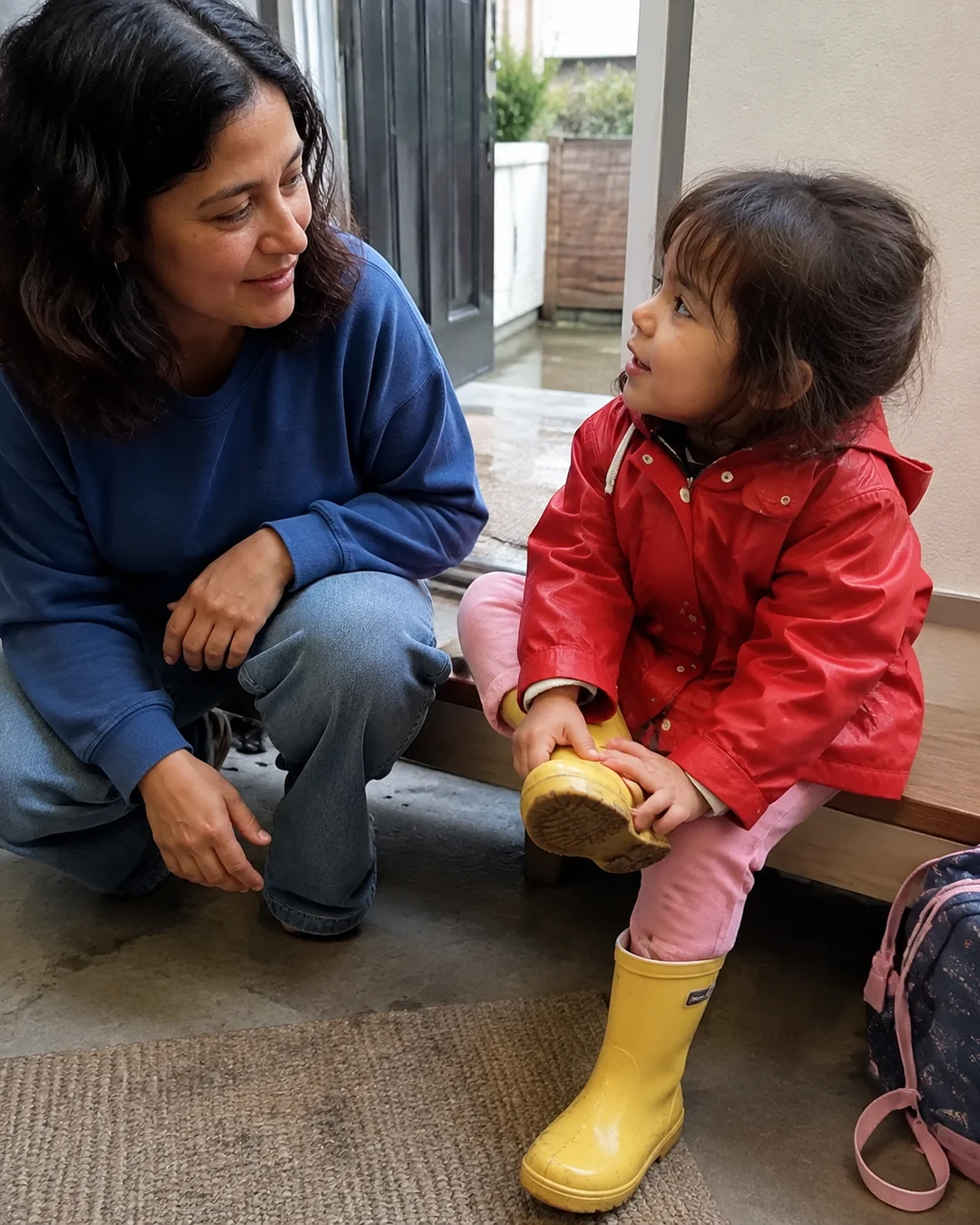



- From the first day of kindergarten, you can take a 2-second clip at drop-off or pickup and share it with the family members you invite. seenow! makes a recap video of each week automatically, so the record no longer depends on someone else's app.
What seenow! can’t do
- seenow! cannot import photos or videos from a daycare app or from your phone's library. Only clips taken with the seenow! camera can be posted, so save the daycare photos with the steps above.
Core features are free.
POINT
Things to watch for in this situation
Don't delete the app or your account early
Keep the daycare app installed and stay logged in until every batch is saved and copied. If your login is tied to a payment or enrollment, ask the office not to close it until the date they gave you.
Look beyond the photo tab
Daily reports, notes about first words and pictures of artwork are often in other sections of the app. Take a screenshot of the reports you want to keep, such as the day of a first step.
Screenshots are a last resort for photos
A screenshot of a photo is lower quality and carries no date. Use the app's save option whenever there is one.
FAQ
Frequently asked questions
Can the daycare send me all the photos at once?
Sometimes. It depends on the app the center uses and on the staff. Ask the office early; some centers can export your child's files or put them on a USB drive if they have time before your last day.
Why do all the saved daycare photos show the same date?
Photos saved from an app often carry the date you saved them. On iPhone, select a month's photos and use Adjust Date & Time to put them back in the right place in your library.