GUIDE
I'm finally sorting more than 10,000 family photos into yearly books, but the old prints I scanned all show the day I scanned them, so they land in the wrong year. How do I fix that?
By the seenow! teamLast updated:
Date the scans in batches, not one by one: group them by year or event, select a group and change the date at once. When you only know the year or season, use one fixed rule, like the 1st of the month, and caption it "date approximate." Then build each book from a date-sorted album.
WHY
Why this happens
A phone or digital camera writes the moment it took a picture into the file. A scanner doesn't know when your 2009 beach print was taken, so the file gets the only date it has: the day you scanned it. Photo apps sort by that date, which is why a whole shoebox of childhood prints shows up as "last Tuesday" and lands in this year's book.
With a library of 10,000 photos, fixing dates one at a time is what makes people quit. The fix is to treat scans as groups. Prints that came out of the same envelope, album page or birthday party can share a date, and most photo apps let you change a whole selection at once.
The steps below use Photos on a Mac as the example, because Apple documents each part. The same idea works in other photo programs: date in batches, mark guesses, then let the software sort.
HOW TO
What you can do starting today
Sort the scans into dated batches firstNo app needed
Make an album or folder called "Scans to date." Go through it and drag scans into smaller groups you can date the same way: one birthday party, one vacation, one school year. Use clues as you go: a date printed on the back by the photo lab, a holiday, the kids' ages, a car or a house you know you had in a certain year. Write the date of each group on a sticky note on your screen or a list next to you.
Change the date for a whole group at onceNo app needed
Select every scan in one group. In Photos on a Mac, choose Image > Adjust Date and Time, type the date in the Adjusted field, pick the time zone on the map if it's wrong, and click Adjust. On an iPhone or iPad, select the photos, then use Adjust Date & Time from the More menu. Do one group, check that it moved to the right place in your library, then go on to the next.
Source: Apple Support, Photos User Guide for Mac: Add titles, captions, and more
Use one rule for dates you're only guessingNo app needed
For prints you can only place by year or season, pick a rule and stick to it, for example the 1st of the month, or July 1 if you only know the year. Then add a caption such as "date approximate, summer 2009" in the Info window. Apple's guide notes that captions make items easier to search, so you can find every guess later by typing "approximate."
Source: Apple Support, Photos User Guide for Mac: Add titles, captions, and more
Build each year's book from a date-sorted albumNo app needed
Create one album per book year and add both the phone photos and the newly dated scans. Choose View > Sort > Keep Sorted By Oldest First, and the old prints fall in among the digital photos in order. If you'd rather not add photos by hand, a Smart Album with a Date condition gathers everything in that range for you.
Source: Apple Support, Photos User Guide for Mac: Create and work with albums / Apple Support, Photos User Guide for Mac: Create Smart Albums
Put the date in the name of new scansNo app needed
For the prints you haven't scanned yet, add the year and month to the file name or folder as you scan, like "2009-07 beach trip." Even if the date inside the file is wrong, any computer can sort by name, and you won't have to rebuild the clues later.
WITH SEENOW!
Doing it with seenow!
seenow! is a family app for short videos, about 2 seconds a day, shared in a private group. It can't help with the scans, but it keeps new everyday clips in order from the start.
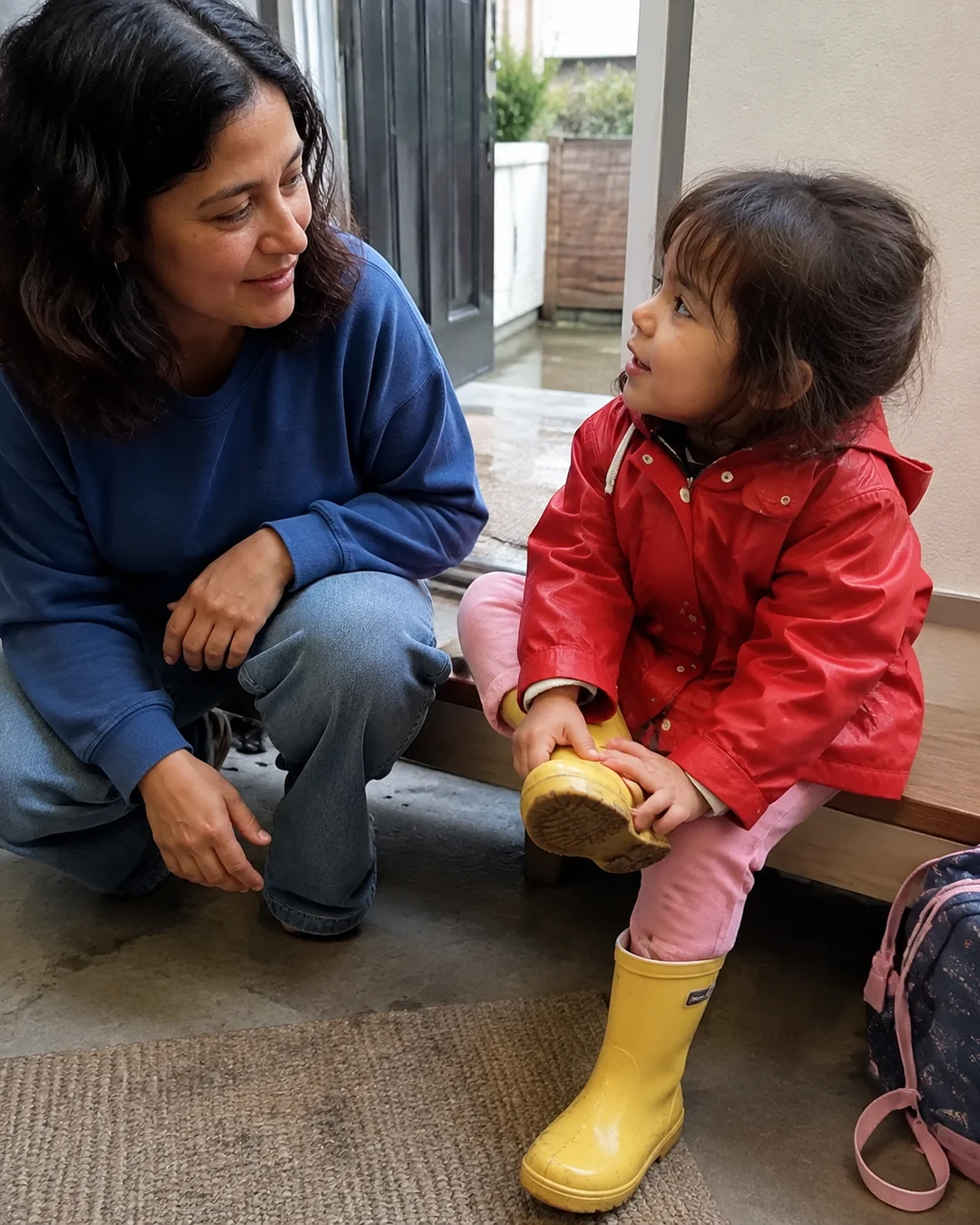



- Take 2-second clips with the seenow! camera as the year goes on, and each week seenow! turns them into a recap video automatically, with no editing. That's one less pile to sort when next year's book comes around.
What seenow! can’t do
- seenow! can't import, date or sort scans or photos from your library. Only photos and videos taken with the seenow! camera can be posted, so the steps above are the way to fix the old prints.
Core features are free.
POINT
Things to watch for in this situation
Check the dates after you export
Before you upload a year to a photo book service, export a few corrected scans and check that the date came along. Some programs keep your change only inside their own library. If it didn't carry over, add the year to the file names before uploading.
Keep the original prints in order too
Once a batch is dated, write the year on the envelope or box the prints came from. If you ever need to rescan, you won't have to work out the dates again.
FAQ
Frequently asked questions
Can I undo a date change if I picked the wrong year?
Yes. Select the photos and change the date again. On an iPhone or iPad, the Adjust Date & Time screen also has a Revert option that goes back to the original date.
Should I give undated photos the scan date and leave them?
For a chronological book, no. A rough date in the right year is more useful than an exact date that's wrong, as long as the caption says it's approximate.
Does the time zone matter for old scans?
Only a little. If the time zone is off, a photo can slip into the day before or after. For yearly books that's rarely a problem, unless you date a batch December 31 or January 1.
I use Windows, not a Mac. What then?
The same plan works: date in groups, mark guesses and sort. If your photo program can't change dates in bulk, putting the year and month at the start of each file name keeps the scans in order anywhere.