GUIDE
I want my 85-year-old mother to see our family photos on her iPad, but there are thousands of them. How do I choose and send them without overwhelming her?
By the seenow! teamLast updated:
Don't send everything. Clear out duplicates first, pick a small batch around one event or person, and add it to a single shared album on her iPad on a regular day each week. She gets one notification and a short album to enjoy, and the rest can wait for the next batch.
WHY
Why this happens
Years of phones and cameras add up. A family can easily have thousands of photos spread across devices and drives, and the natural instinct is to send Mom the whole collection so she has everything. In practice, a folder of 4,000 photos on an iPad is hard for anyone to enjoy. She opens it, sees an endless grid of tiny squares, scrolls for a minute and closes it, and the photos you meant as a gift become one more thing on the iPad that feels confusing.
In an Apple Community thread on exactly this situation, a reply advised sharing only the best photos, grouped by event, because thousands at once would overwhelm the people receiving them. That matches what tends to work with older parents: a short, finished set she can look through in one sitting, and something new to look forward to next week.
So the job has two parts. First, cut the pile down on your side, where you have the tools and the patience. Then hand it over in small, regular pieces through one place on her iPad that never changes.
| Stage | What you do | What she sees |
|---|---|---|
| Clear out | Merge duplicates and near-duplicates | Nothing yet |
| Choose | Pick one event, person or year | Nothing yet |
| Batch | Add a small set to one shared album | One notification |
| Repeat | Same day each week | A new set to look forward to |
HOW TO
What you can do starting today
Clear out repeats before choosingNo app needed
Bursts and retakes inflate the count more than you'd think. On iPhone, Apple's guide says Photos gathers exact duplicates in a Duplicates collection under Collections, then Utilities, where tapping Merge combines each set; if you have none, the collection doesn't show up.
The Duplicates collection only catches copies, not the five nearly identical shots of the same moment. For those, scroll through one event at a time and keep the single shot where the most faces are clear. It is slow the first time, but it shrinks the pile more than anything else you can do.
Source: Apple iPhone User Guide: Merge duplicate photos and videos on iPhone
Choose by story, not by dateNo app needed
A month of random photos is harder to follow than a set with a theme. Try one batch per event or person: "Emma's soccer season," "The beach week in July," "Your grandkids, 2019." Mix in a few photos of people and places from her own life, since familiar faces make the whole set easier to enjoy. Pick fewer than you think, enough to look through with a cup of coffee.
Use one shared album on her iPad, and add to it each weekNo app needed
Set up one shared album with an obvious name, such as "Family Photos for Mom," and invite her Apple Account. Apple Support says participants get a notification when you add new photos, so each weekly batch arrives as one alert rather than dozens of texts. On her iPad, Apple's guide says she taps Collections, then Shared Albums, to see the album, and Activity to see what's new. Show her that path in person once, and write it on a card that stays by the iPad. You don't need a new album when it grows: Apple's Shared Albums limits page says albums created in version 27 or later have no fixed limit on photos or videos, and the only cap is your available iCloud storage.
Source: Apple Support: Shared Albums limits / Apple Support: How to use Shared Albums in Photos on your iPhone, iPad, or Apple Vision Pro / Apple iPad User Guide: Create shared albums in Photos on iPad
Pick a regular dayNo app needed
A routine helps more than any setting. If new photos always come on Sunday evening, she knows when to look, and you can mention them on your weekly call: "There are pictures from the recital in the album." Ask which ones she liked, and let her favorites guide the next batch.
WITH SEENOW!
Doing it with seenow!
seenow! won't help with the thousands of photos you already have. It can add a small daily piece of family life to her iPad, alongside the weekly album.
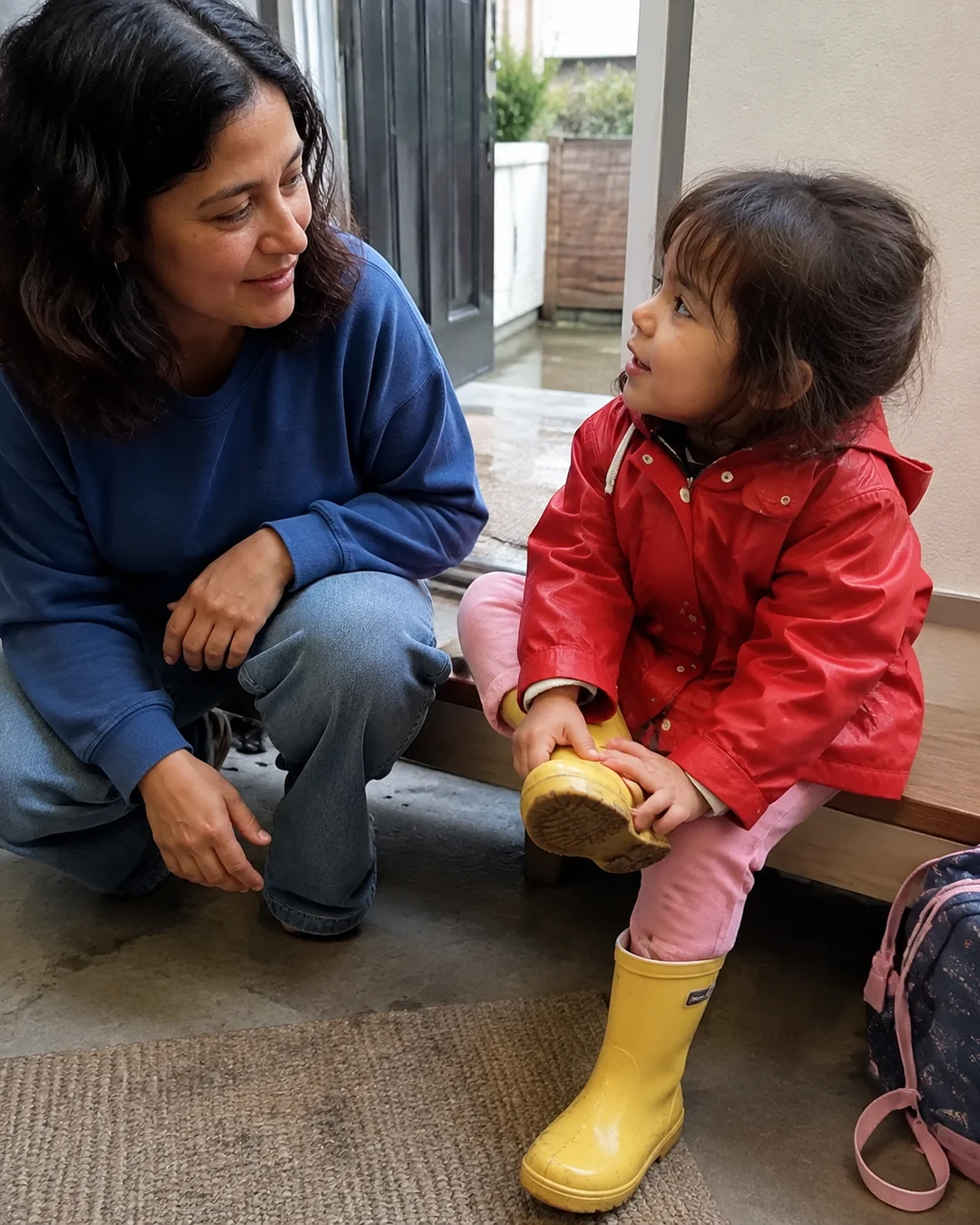
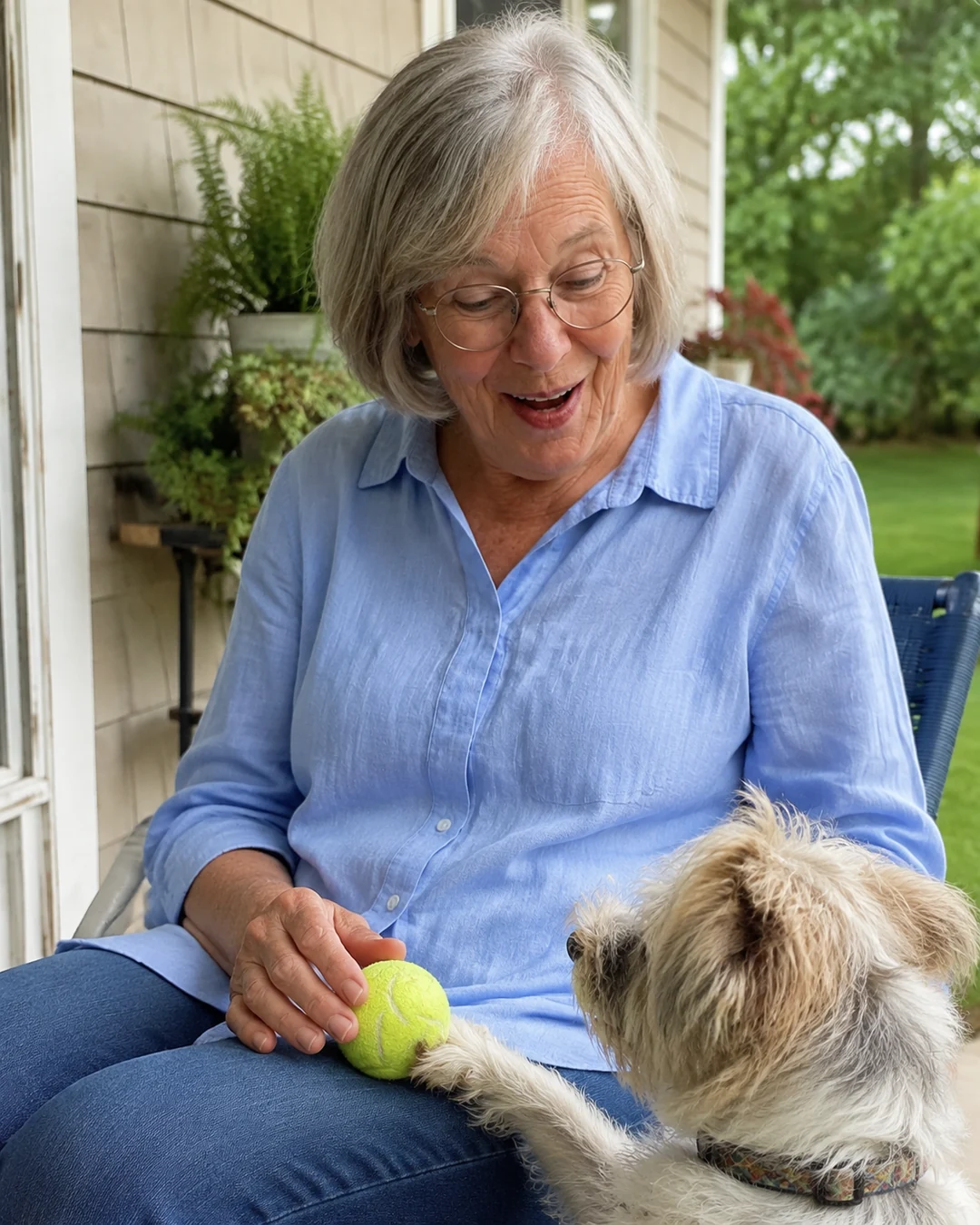


- The app is built around two actions, filming and watching, which keeps it manageable for grandparents.
- Family members film a short clip, about 2 seconds a day, so what she watches stays short.
What seenow! can’t do
- You can post only what you shoot with the seenow! camera, so your existing photo library, scans and photos on a drive cannot be posted to seenow!.
- seenow! doesn't sort, merge or pick photos for you; the choosing still happens in your own photo app.
Core features are free.
POINT
Things to watch for in this situation
Keep the album in one place
Starting a new album for every batch puts her back in front of a long list. Add each batch to the same album. If it ever gets too long for her to scroll comfortably, start a fresh one with the year in the name.
Set it up in person if you can
Accepting a shared album invitation and finding it the first time are the hardest steps. If you can, do the first one together on her iPad during a visit, and send the first batch while you're sitting beside her.
FAQ
Frequently asked questions
Should I just give her a drive or a link with everything?
You can, as a backup for the family. For looking at photos, small batches in one album usually get seen far more than a folder of thousands.
What if she doesn't have an Apple Account?
Help her set one up on a visit, or ask a sibling nearby. Without one, a shared album is harder to follow, and printed photos by mail may suit her better.
How do I know which photos she'll like?
Ask after each batch. Faces she knows and places she has been are a good starting point, and her answers will tell you more than any rule.
Can other family members add photos too?
Yes, if you allow participants to add photos. Agree on who adds what each week, so the batch stays small.