GUIDE
We pulled the kids' photos together from our phones, the computer and an old external drive, and now a lot of them show up two or three times. Which copy do we keep?
By the seenow! teamLast updated:
Don't delete by hand yet. Leave the old drive untouched, gather everything in one library, and let a duplicate finder group the copies. Keep the copy marked original, or the largest file with the right date. Expect the same shot as both HEIC and JPEG, and only delete once the cleaned library is backed up.
WHY
Why this happens
Duplicates are what you get for doing the right thing. Over the years, the kids' photos were copied from one phone to the next, imported to the computer, backed up to a drive "just in case," and maybe imported again when a computer was replaced. Each copy was a safety net. Put them all in one place, and the safety nets turn into clutter.
They are also harder to spot than you'd expect, because the copies are rarely identical files. Apple says that importing iPhone photos into Photos, Image Capture or a PC might convert them to JPEG or H.264. So one import left you a HEIC photo and another left you a JPEG of the same moment, with a different file name and size. Some copies were edited or cropped, some were shrunk when they were sent by text, and some lost their original date along the way.
That is why sorting by file name or deleting by eye goes wrong. You need a tool that compares the pictures themselves, and a simple rule for which copy wins.
| If the copies differ in | Keep | Why |
|---|---|---|
| Size or resolution | The largest one | Smaller copies were often shrunk when shared |
| File type (HEIC and JPEG) | The original format, if your computer opens it | A converted copy can't gain back detail |
| Date | The one with the date it was taken | Copies made later may show the copy date |
| Edits or cropping | The unedited original, plus the edit if you like it | You can always crop again; you can't uncrop |
HOW TO
What you can do starting today
Freeze the old drive before you clean anythingNo app needed
Treat the old external drive and the old phones as read-only for now. Don't delete from them, and don't run a cleanup tool on them. If the drive is the only copy of some years, copy its contents to a second drive first. While you clean, the old drive is your way back if a tool merges the wrong photos.
Gather everything into one library, labeled by sourceNo app needed
Copy all the photos into one place on the computer, in folders named for where they came from, such as "Dad's old phone" or "Blue external drive." Then import those folders into the one photo library you plan to keep. Knowing where each copy came from helps you decide later which ones to trust.
Let a duplicate finder do the comparingNo app needed
On a Mac, Photos collects duplicates in the Duplicates collection under Utilities, and Apple says they may take some time to appear in a large library as Photos analyzes it. Wait for it to settle before you start merging. On an Android phone, Google's Files app has a Duplicate files card under Clean, where the original file carries an Original badge that Google recommends keeping. On a Windows PC, use a duplicate finder program that shows both copies side by side before anything is deleted.
Source: Apple Support, Photos User Guide for Mac: Remove duplicate photos and videos / Google Help: Delete duplicate files with the Files app on Android
Review the groups before you merge themNo app needed
Go through the groups a year at a time rather than merging everything at once. Use the table above: keep the largest original with the right date, and keep an edited version only if you like it better. Pay extra attention to bursts and near-identical shots of the kids, which a tool may group even though you want both.
Stop new duplicates at the sourceNo app needed
Choose one person and one route for bringing photos onto the computer. If you want iPhone photos to stay in their original format when you import them, Apple's setting is Keep Originals under Settings, Apps, Photos. Once the library is clean and backed up to a second drive, you can finally decide what to do with the old drive.
Source: Apple Support: Using HEIF or HEVC media on Apple devices
WITH SEENOW!
Doing it with seenow!
seenow! won't clean up a photo library. It is a family app for short clips, about 2 seconds each, and it only touches what you record with it.
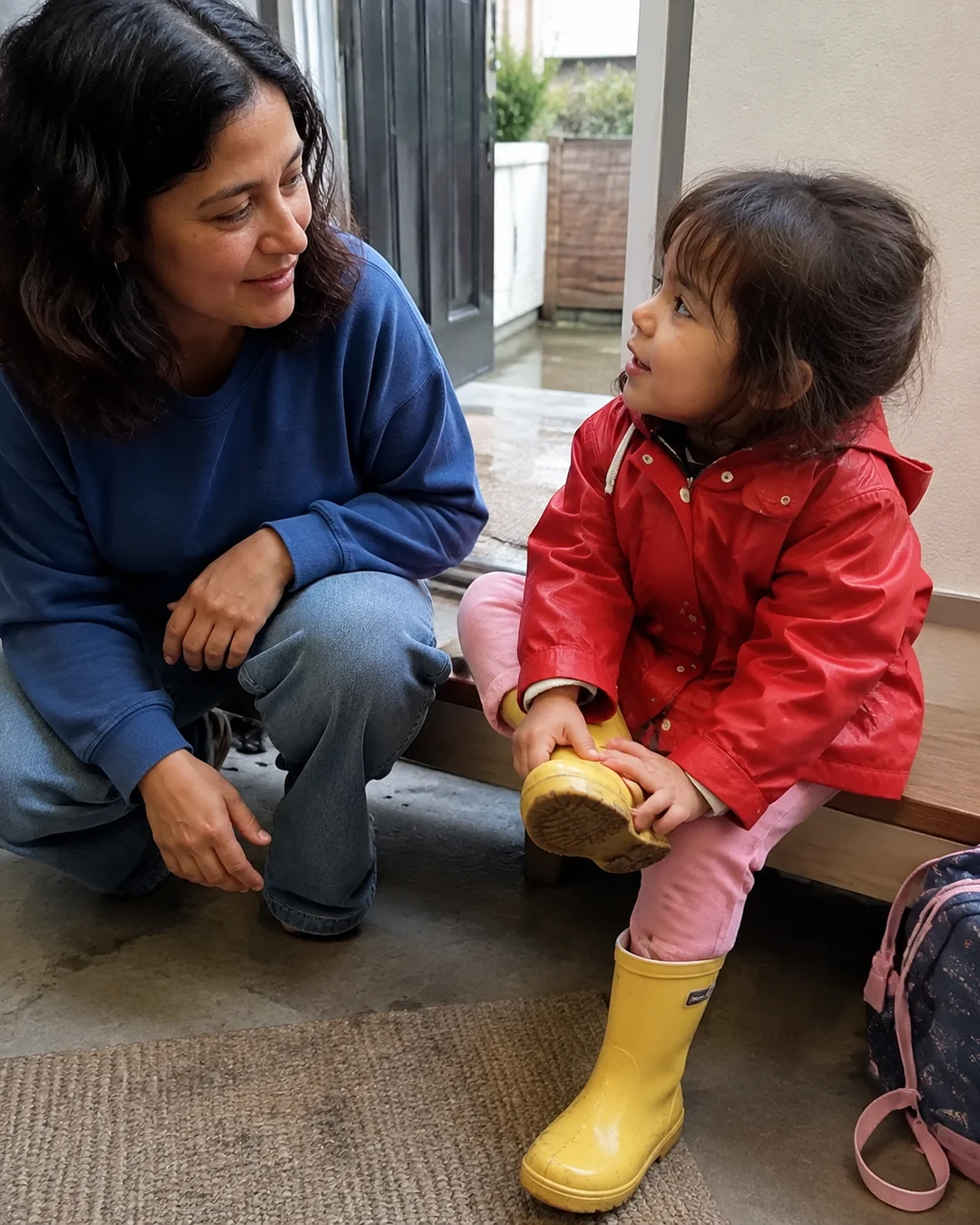



- For everyday moments going forward, a 2-second clip taken with the seenow! camera, collected into a weekly recap video on its own, gives the family something to watch without adding more full-length files to sort through later.
What seenow! can’t do
- seenow! cannot find or remove duplicates, import photos, or back up your library. It also can't post photos already on your phone or drive; only clips and photos taken with the seenow! camera can be shared.
Core features are free.
POINT
Things to watch for in this situation
A merge is not the same as a backup
A cleaned library on one computer is still one copy. Back it up to a second drive before you erase or reuse the old one, and open a few photos from different years on the backup to make sure it worked.
Watch for photos that are similar, not the same
Duplicate tools can group a burst of five shots of a birthday candle as duplicates. If one of them has the expression you love, keep it, even if the tool suggests otherwise.
FAQ
Frequently asked questions
If I set my iPhone camera to Most Compatible, will that stop the HEIC and JPEG copies?
Apple says Most Compatible makes all new photos and videos use JPEG or H.264. That avoids the conversion for new photos, but it doesn't change the photos you already have, so the existing pairs still need sorting.
Should we delete the duplicates on the old drive too?
There is no need. Once your cleaned library is backed up in two places, the old drive is just an extra copy. Keep it as is, or reuse it as one of the backups after the new copies are checked.