GUIDE
Starting in January, I want to take one family photo every day, add a one-line caption, and print it all as a yearbook in December. Is that realistic, and how do I keep it going?
By the seenow! teamLast updated:
It is realistic if the caption is written the same day and a missed day has a plan. Type one line into the photo's caption, tag it with a keyword such as the year, keep a short list of easy subjects for dull days, and pull out each quarter's photos as you go, not all in December.
WHY
Why this happens
A photo a day is easy to start and hard to finish, and the hard part is usually not the photo. It is the caption you meant to write later, the week you were sick or traveling, and then a December with 300-plus pictures to sort, caption and lay out at once. In one parent forum thread about exactly this plan, the person who started it said a few weeks in that she couldn't be rigid about it, and others suggested a weekly photo.
So the project needs three things built in from the first week: a caption habit that takes seconds, a rule for missed days that doesn't make you feel behind, and a way to gather the year's photos that is a search, not a scroll. With those in place, the December part shrinks to picking a layout and ordering.
HOW TO
What you can do starting today
Write the one line before you put the phone downNo app needed
The caption is the part that turns 365 photos into a family story, and it is the part you won't remember in November. Right after you choose the day's photo, swipe up on it in the Photos app and type one line in the caption field: who, where, and the one detail you'd forget, like "Leo's first lost tooth, bagel in hand." If you edit on a computer, Photos on iCloud.com has the same Title and caption field in each photo's Info panel.
Keep the style the same all year, such as starting with the day of the week. Consistent captions look better in print and are quicker to write.
Source: Apple Support: Add star ratings, captions, keywords, and more in Photos on iCloud.com
Tag every chosen photo with one keywordNo app needed
You will take many photos a day; only one is the book photo. Mark it with a keyword such as "book2027" (Add Keywords in the photo's info). In December, a single search for that keyword brings up the whole year, and adding a month ("book2027 march") is an easy way to check for gaps. If your phone doesn't offer keywords, put all chosen photos in one album instead.
Source: Apple Support: Add keywords to photos and videos on iPhone
Keep a list of easy shots for days when nothing happensNo app needed
Write a short "nothing happened today" list in your notes app: shoes by the door, breakfast plates, the dog asleep, a kid's hand on the car window, the view from the porch. Ordinary days are part of the year, and a list means you never stare at the camera wondering what counts.
Decide now what happens if you miss a day: take two the next day, or let the page for that day hold a caption only. Either is fine. Choosing in January keeps a missed day from turning into a missed month.
Pull out each quarter's photos as you goNo app needed
At the end of March, June and September, search your keyword, check that every day has its photo and line, and export that quarter to a folder. On a Mac, Photos can name exported files with a sequential number and your own text before it, and can put each day in its own subfolder, so the files stay in date order wherever you build the book.
Then December is only the last quarter plus the layout. Check your book maker's holiday ordering deadline early, because the final weeks of the year are when those cutoffs land.
Source: Apple Support: Export photos, videos, and slideshows from Photos on Mac
WITH SEENOW!
Doing it with seenow!
seenow! is a private family app built around short daily videos, about 2 seconds each. It isn't a photo book tool, but its daily rhythm can sit next to your project.



- In seenow!, the family's posts for today unlock once you post your own clip for the day, which gives everyone a small daily nudge to capture something, even on dull days. Each week, the group's clips are made into a recap video automatically, and only the family members you invite can see them.
What seenow! can’t do
- seenow! doesn't add captions to your photos or print books. Keep taking your book photo with your phone's camera so it stays in your photo library; only photos and videos taken with the seenow! camera can be posted to seenow!, and pictures already on your phone can't be added.
Core features are free.
POINT
Things to watch for in this situation
Back up the year as you go
A whole year of book photos on one phone is a year you can lose in one drop. Make sure your photo library is backed up, and keep the quarterly export folders on a computer or an external drive, too.
Let the family skip the camera sometimes
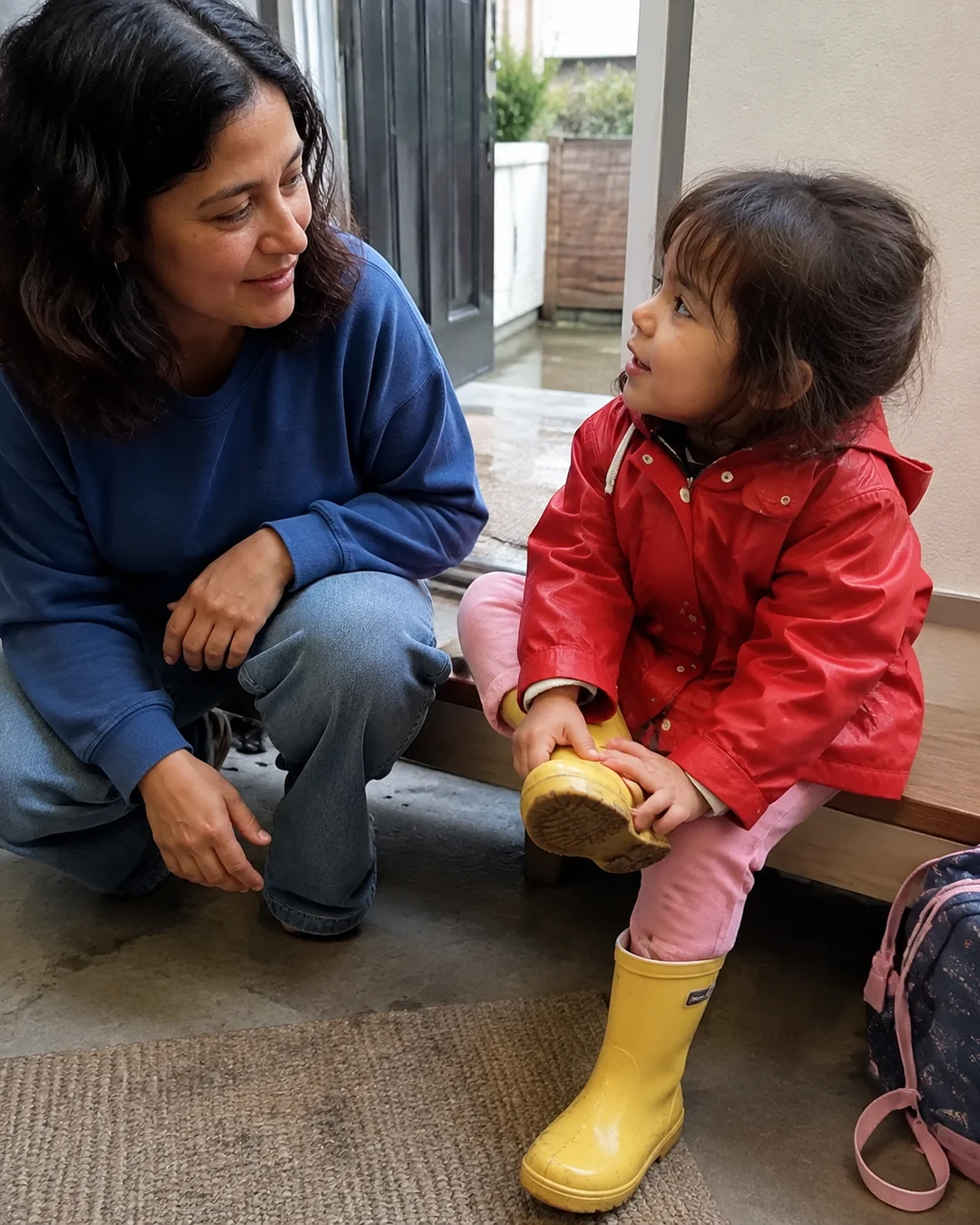
A daily photo of the kids can start to feel like a chore to them. Days with no faces, like a lunchbox, a muddy boot or a bedtime book, keep the project going without asking anyone to pose.
FAQ
Frequently asked questions
Would a weekly photo be a better plan?
If daily feels heavy, a weekly photo with a longer caption makes a lovely book too, and you can switch to weekly partway through without starting over. The steps are the same: write the caption that day, tag the photo, and export each quarter.
Do the captions print in the book automatically?
It depends on the book maker. Some read captions or titles from the photo files and some don't. Keep your captions in Photos, and test a few pages with one quarter's export before you design the whole book.
Can the caption be longer than one line?
Yes, but one line is what keeps the habit easy. If a day deserves more, write the longer story on a separate note and add it as a full page in the book.