GUIDE
My phone's photo app recognized my daughter as a baby but stopped finding her as she grew. How do I get her photos back under her name?
By the seenow! teamLast updated:
Her newer photos are often grouped as a different, unnamed person. On iPhone, open People & Pets and merge that entry with her named one, name a few recent photos by hand, and remove wrong matches. Then keep a yearly album of her so finding her photos never depends on face matching alone.
WHY
Why this happens
For the first year or two, the People feature feels like magic: tap your daughter's name and every photo of her appears. Then one day it stops. Tapping her name shows mostly baby pictures, and her preschool photos seem to be missing. The app may not even offer to name her face anymore. Questions about this show up regularly in Apple's own community forums, often from parents with thousands of photos.
Nothing is lost. The photos are still in your library; they just aren't attached to her name. A child's face changes a lot between a round-cheeked baby and a 4-year-old with a gap-toothed grin, and Apple notes that the same person is sometimes identified in more than one group. In practice, your daughter can end up as two people: the named baby and an unnamed preschooler.
The repair happens in a few places, depending on what you see. This table matches the symptom to the fix.
| What you see | What to do |
|---|---|
| Her name shows only baby photos | Look for an unnamed group of her and merge it with her named one |
| You can't find her newer face anywhere | Tap Add People at the bottom of People & Pets to see more faces |
| A recent photo shows her face with a question mark | Name her in that photo through the Info button |
| Her brother or cousin shows up under her name | Select those photos and choose This is Not [her name] |
Source: Apple Support: Find People and Pets in Photos on your iPhone or iPad / Apple iPhone User Guide: Find and name people and pets in Photos on iPhone
HOW TO
What you can do starting today
Find her other entryNo app needed
Open Photos, go to Collections and then People & Pets. Scroll through the faces, including unnamed ones. If you don't see her newer face, Apple's iPhone User Guide says to tap Add People at the bottom of the collection to see more faces. Look for a group of her as she looks now.
Source: Apple iPhone User Guide: Find and name people and pets in Photos on iPhone
Merge the two entriesNo app needed
Apple's steps for merging: in People & Pets, tap Edit, select both entries (her named baby entry and the newer unnamed one), tap More, then tap Merge. Her name now covers both groups, and her photos from both stages show up together when you tap her name.
Source: Apple Support: Find People and Pets in Photos on your iPhone or iPad
Name her in a few recent photos by handNo app needed
Give the app some current examples. Open a recent photo where her face is clear, tap the Info button, tap the face with a question mark, tap Edit Name and Photos, and choose Name This Person, or Merge Photos if she was recognized before. A handful of clear photos from the past few months, in different light and settings, is a good start. With iCloud Photos on, Apple says People & Pets stays up to date across your devices, so you only do this once.
Source: Apple Support: Find People and Pets in Photos on your iPhone or iPad
Remove wrong matches, especially siblingsNo app needed
Brothers, sisters and cousins can look alike at the same age. Open her collection, tap Select, choose the photos that aren't her, tap More, and then This is Not followed by her name. Cleaning up a few mistakes helps the collection stay hers.
Source: Apple Support: Find People and Pets in Photos on your iPhone or iPad
Don't rely on face matching aloneNo app needed
Face matching is a convenience, not a filing system. Once a year, around her birthday, make an album named with her name and age, like "Maya, age 4," and add the best photos from that year. It takes ten minutes and gives you a list that never depends on how the app reads her face.
WITH SEENOW!
Doing it with seenow!
seenow! is a family app where everyone takes a short video, about 2 seconds a day, in a private group. It solves a different part of the problem: seeing her growth in order.
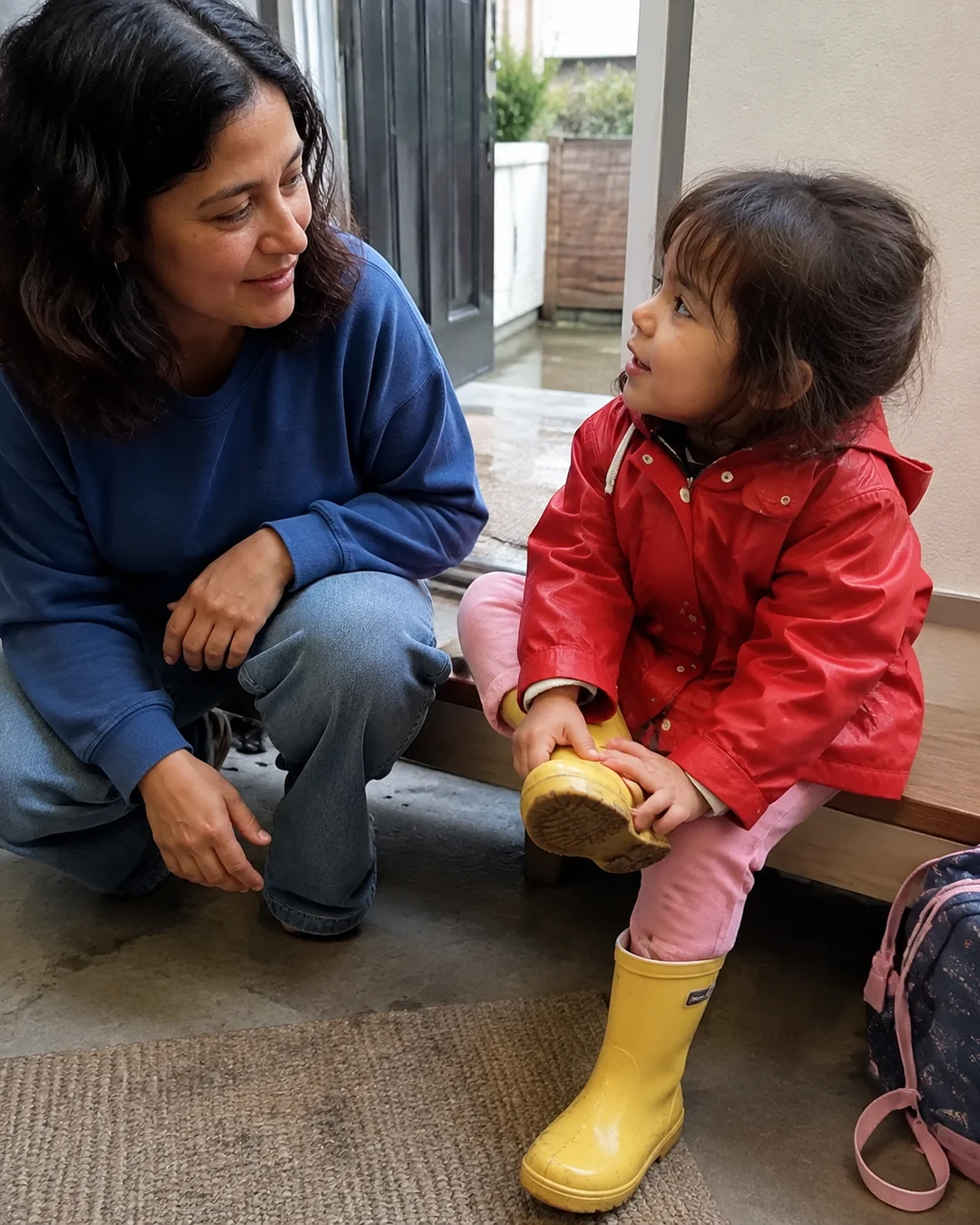
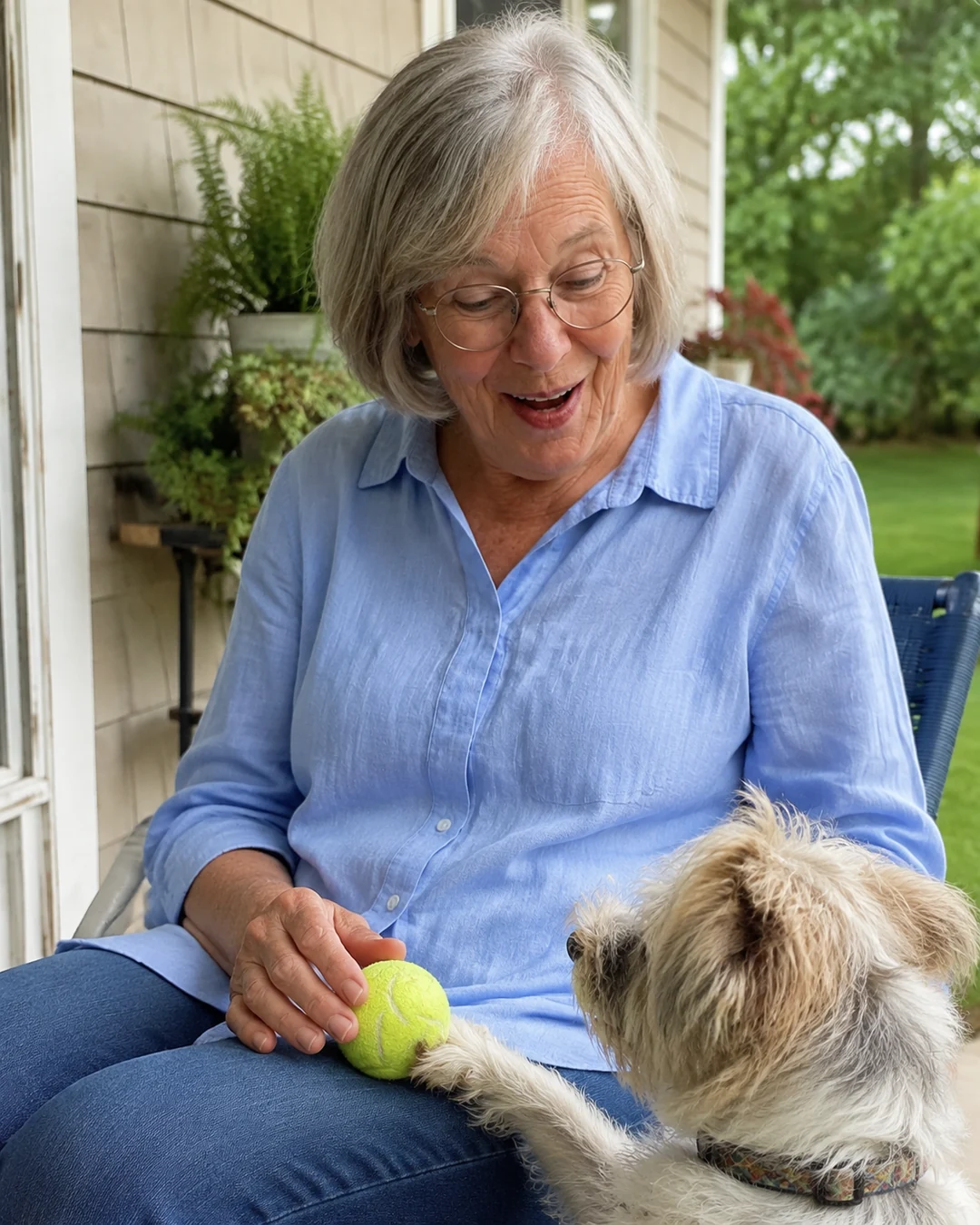


- A 2-second clip of her each day builds a timeline you can look back through without searching by face.
- seenow! makes a weekly recap video automatically, so each week of her growing up is already put together.
What seenow! can’t do
- seenow! doesn't sort or find photos in your phone's photo library and can't fix People & Pets. Use the steps above for that.
- You can post only what you shoot with the seenow! camera, so her older photos can't be added.
Core features are free.
POINT
Things to watch for in this situation
Hiding a person is different from removing a mistake
People & Pets also lets you hide someone or stop featuring them in Memories. That changes what the app shows you; it doesn't fix whose photos are under her name.
On Android, the steps are different
Face grouping on Android depends on which gallery app you use, and the menus differ. The idea is the same: look for a second entry of your child, combine the two, and correct wrong matches, using that app's help page.
FAQ
Frequently asked questions
Did the app delete my daughter's photos?
No. The photos stay in your library. A common cause is that her newer photos are grouped under a different, unnamed entry. Merge it with her named entry in People & Pets.
Do I have to do this every year?
You may need to merge again as she changes, and naming a few recent photos from time to time helps. A yearly album of her best photos is a simple backup either way.
Will merging mix her up with her sibling?
Check before you tap Merge that both entries are her. If a sibling's photos end up under her name, remove them with This is Not [her name].